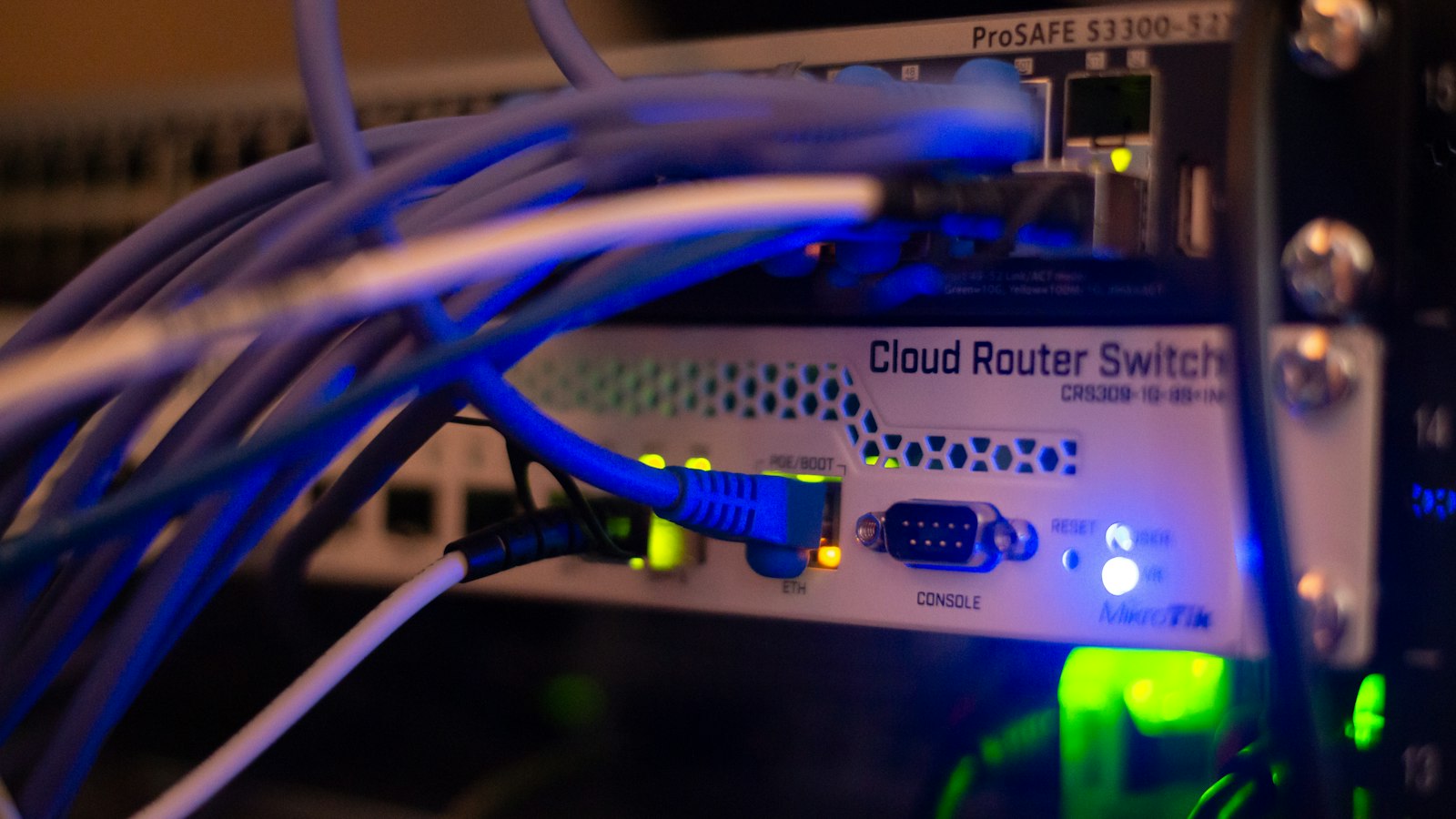
Illustrative photo by Albert Stoynov on Unsplash.
I’ve taken Networking 1 and 2 at the University of Cincinnati. As I study for CompTIA Network+, those courses give me a foundation to build on. The useful connection is between the concepts behind a network and the questions that help explain why a device cannot connect.
My personal PXE lab gives those ideas a concrete setting. Addressing, name resolution, and network boot all have to fit together before a blank virtual machine can become a usable domain workstation.
Following traffic through the layers
#The OSI model gives networking problems a structure. Physical connections, Ethernet frames, IP packets, transport protocols, and application behavior each describe a different part of communication.
For troubleshooting, the value is in narrowing the question. A disconnected cable calls for a different check than a device with the wrong default gateway. An application error can occur even when both the cable and the IP configuration are correct.
I find it useful to think about what each check establishes. A link light provides evidence of a physical connection. A successful ping shows an ICMP response from a destination. Neither proves that a particular application is available.
IP addressing and subnetting
#An IP address only makes sense alongside its prefix or subnet mask. Together, they help a device determine whether an IPv4 destination is on its local subnet or requires a route through a gateway.
Consider an illustrative workstation configuration:
IPv4 address:    192.168.10.25
Subnet mask:    255.255.255.0 (/24)
Default gateway: 192.168.10.1
With this configuration, 192.168.10.50 is on the same subnet. Traffic for 192.168.20.50 needs a route, typically through the default gateway. The conventional usable host range for 192.168.10.0/24 is .1 through .254, with .0 identifying the network and .255 its broadcast address.
That arithmetic has a practical purpose. A wrong mask can make a workstation treat a remote destination as local. A wrong gateway can leave local communication working while access beyond the subnet fails.
Switching, routing, and segmentation
#Switching and routing explain different decisions along the traffic path. An Ethernet switch normally forwards frames within a VLAN using learned MAC addresses. A router forwards packets between IP networks using its routing table. A multilayer switch can perform both roles.
VLANs divide a switched network into separate broadcast domains. Communication between them requires routing, and access rules determine which traffic is allowed. Creating separate VLANs alone does not establish a complete security policy.
For IT support, the distinction helps explain why a working switch port does not guarantee access to every resource. The device can have a local connection while a route, VLAN assignment, or access rule prevents the intended communication.
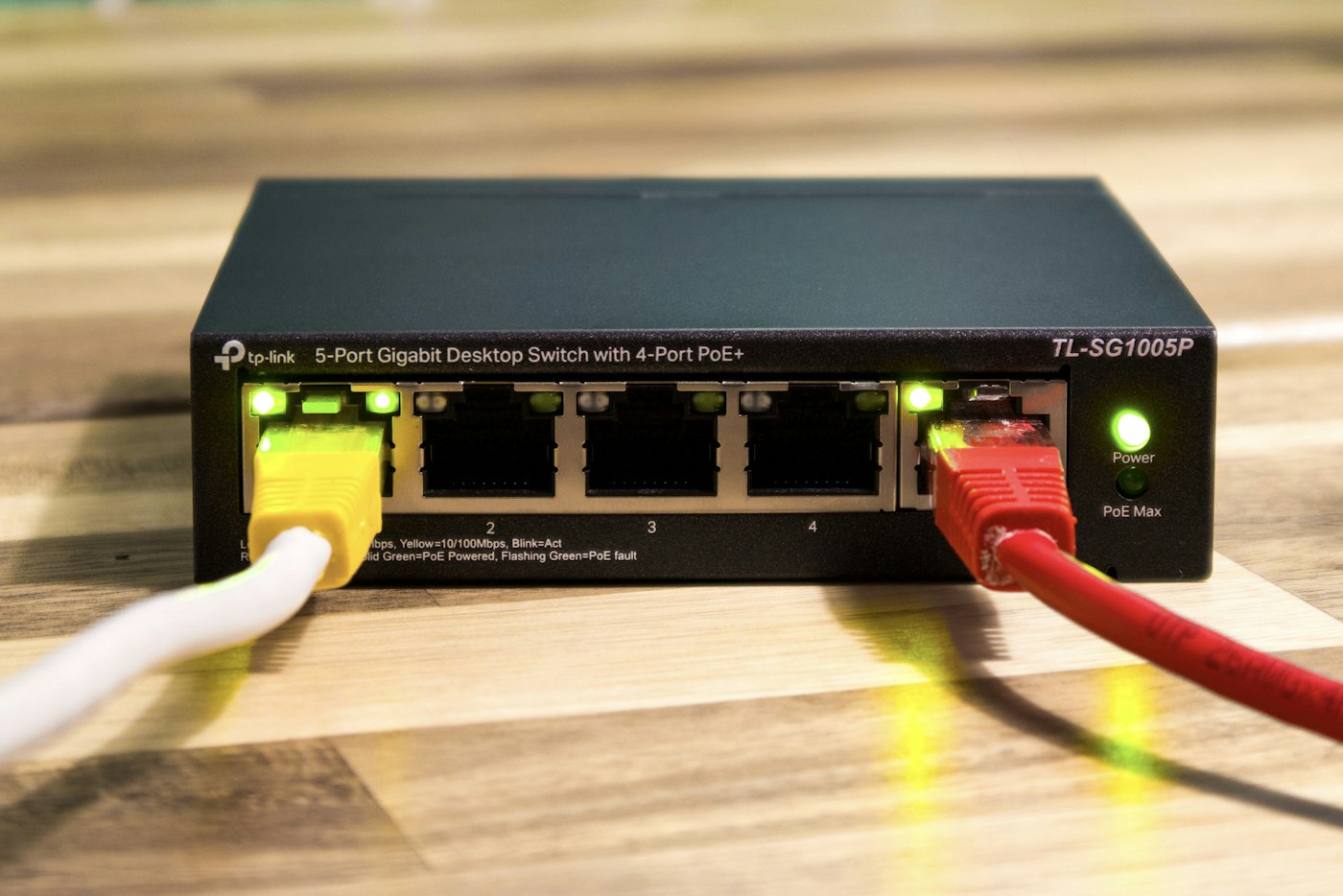
Illustrative photo by User_Pascal on Unsplash.
Making the traffic path visible with Cisco Packet Tracer
#Cisco Packet Tracer provides a way to practice these concepts with simulated routers, switches, and clients. It connects the addressing plan on paper to device configuration and the resulting traffic path.
A useful exercise starts with two clients on one switch. Assign addresses in 192.168.10.0/24, check connectivity, and then move one client into 192.168.20.0/24. The cable can remain connected while communication fails because the clients now need routing between their subnets. Adding a router, placing each subnet on its own interface and switch, and setting the clients’ gateways completes the path.
The next step is to introduce one fault at a time: an incorrect mask, a wrong gateway, or a disabled router interface. Before changing anything else, predict which destinations should still be reachable and compare that prediction with the results.
Packet Tracer’s Simulation Mode makes the process easier to inspect. It lets a learner step through packet events and examine how traffic moves between devices. Following ARP and ICMP events helps connect address resolution and ping behavior to the layers discussed above.
That practice complements my Hyper-V PXE lab. Packet Tracer models network behavior; the PXE lab adds Windows services, boot files, and domain membership to the troubleshooting work. Both settings reward the same habit: describe the expected path before deciding where it broke.
DNS and DHCP in my PXE lab
#DHCP can supply an IPv4 address, subnet mask, default gateway, and DNS server settings. DNS resolves names to records, including the addresses clients use to reach services.
In my Active Directory and PXE lab, the internal Hyper-V network is 10.0.100.0/24. DC01 at 10.0.100.10 provides Active Directory, DNS, and DHCP. WDS01 at 10.0.100.20 handles the WDS PXE and TFTP path. The lab’s architecture and runbooks document those roles separately.
DHCP gives a booting client its network configuration, including the DNS server setting that points to DC01. WDS responds to the PXE request and delivers the boot environment. DNS supports name resolution for the lab and the records Active Directory clients use to locate domain services.
The distinction matters at each stage. Receiving a DHCP lease does not prove that the PXE boot files can load. Reaching WinPE does not prove that the installed Windows client can locate the domain. A client using a public DNS resolver might resolve internet names while failing to find the internal hufflab.internal records.
In this same-subnet design, DHCP options 60, 66, and 67 remain unset, and WDS01 is the sole PXE responder during the WDS phase. That is a choice tied to this topology. The useful Network+ lesson is to understand which service supplies each part of the connection before changing settings.
On Windows, these commands help separate the questions:
ipconfig /all
ping 10.0.100.10
nslookup -type=SRV _ldap._tcp.dc._msdcs.hufflab.internal 10.0.100.10
Test-NetConnection 10.0.100.20 -Port 445
These are example checks from a Windows client on the lab network. ipconfig /all shows whether the client has the expected subnet and DNS settings. ping tests ICMP reachability to DC01, although a timeout can also reflect filtering. The SRV lookup asks DC01 for domain-controller location records. The port test checks TCP access to WDS01’s SMB service, which hosts the Windows installation source; it does not test PXE or TFTP.
Each result answers a specific question. Completing the deployment still requires verifying the installed client’s DNS configuration, domain membership, and ability to use the intended domain account.
Turning concepts into a troubleshooting sequence
#Suppose a workstation cannot open an internal web application. I would start by establishing the scope: one workstation or several, one application or all network access, and whether anything recently changed.
From there, the checks follow the dependencies:
- Check the physical or wireless connection.
- Inspect the IP address, prefix, gateway, and DNS settings.
- Test the relevant network path, accounting for possible ICMP filtering.
- Resolve the application’s hostname and check whether the answer is expected.
- Test the application’s port, then investigate the service, TLS, or login behavior as needed.
- Verify the original task after a fix and document what changed.
This sequence can branch as evidence comes in. If several devices fail to reach one service, that points toward a different investigation than one workstation failing to reach everything.
Building on college coursework
#The CompTIA Network+ N10-009 objectives include addressing, switching, routing, network services, security, operations, and troubleshooting. I use that outline to organize my study and identify areas that need more practice.
Networking 1 and 2 are part of my academic background. My current goal with Network+ study is to make that foundation easier to apply: explain the expected traffic path, choose a useful check, and understand what its result actually proves.